
If you’ve been curious about how Microsoft Copilot can actually change the way you work inside Excel, Word, PowerPoint, Outlook, and Teams, this course — Copilot Microsoft 365 (Copilot AI + Excel, Word, PowerPoint) — does a pretty solid job of showing what’s possible. It’s very much a “hands-on demo” style course, so instead of vague theory, you get to see Copilot doing real tasks: writing emails, generating presentations, summarizing meetings, building Excel insights, and more.
If you’re someone who lives inside Microsoft 365 apps every day and wants AI to make things faster and less painful, this course is aimed right at you.
Instructor Reputation
Steve Ballinger is one of those Udemy instructors who has been around long enough, and taught enough people, that he’s practically a brand unto himself. With 1,030,000+ students, 278k+ reviews, and 93 courses, he sits in that top-tier group of instructors whose courses are almost always safe bets for beginners and professionals alike. You don’t get numbers like that unless you’re consistent, approachable, and genuinely useful — and Steve checks all three boxes.
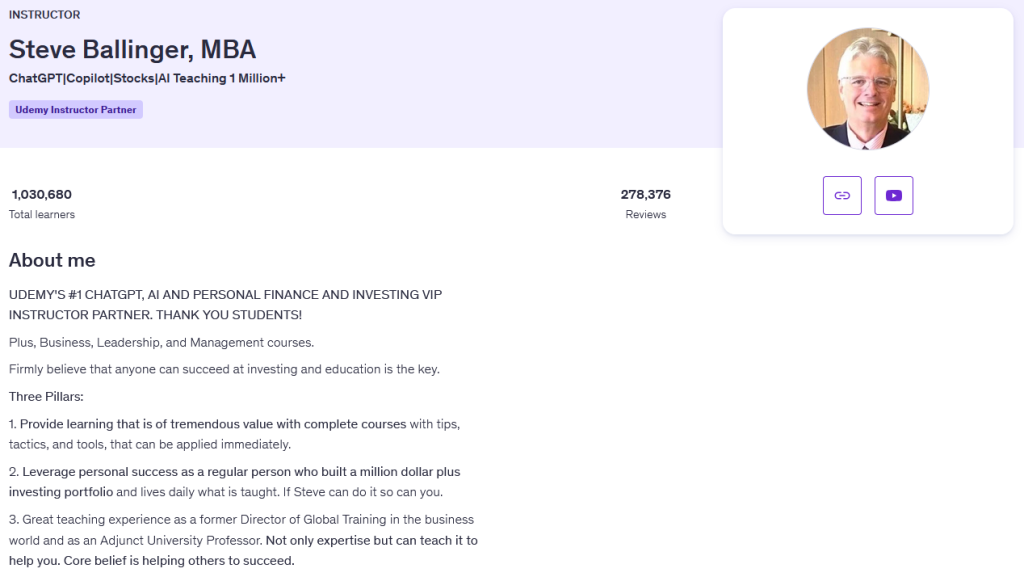
One of the standout qualities he brings is his background. Before becoming a full-time Udemy instructor, he worked as a Director of Global Training, which means he literally built training programs for large organizations and taught people from all over the world. That corporate teaching experience shows up in this Copilot course because he’s really good at explaining new or intimidating tools in a way that feels familiar. He doesn’t just show where buttons are — he shows why they matter in real workflows, which is something only a seasoned trainer tends to think about.
He also spent time teaching as an Adjunct University Professor, and you can tell he understands how to structure information so it builds logically. Nothing in the course feels chaotic or thrown together, even though some students have noted he occasionally jumps around inside the apps during demos. But even when that happens, you can still follow what he’s doing because the explanations are so grounded in real use cases.
Personality-wise, Steve has a very upbeat, friendly teaching style. He talks to the camera like he’s talking to you across a desk — no monotone lectures, no robotic slideshows. His energy makes a big difference, especially in a course like this, where he’s walking through software that could easily feel dry. Instead, he keeps things light, conversational, and very much tied to “Here’s how this will make your life easier.”
His reputation on Udemy is also supported by the sheer amount of positive feedback across his other bestsellers in investing, personal finance, and AI tools. Students repeatedly call him:
- “Engaging and energetic”
- “Very easy to follow”
- “A great explainer of practical concepts”
- “Someone who teaches like a real person, not a scripted narrator”
Not every review is perfect — a few people mention they’d prefer he spoke more slowly, or that some lessons feel like live demos rather than polished tutorials. But overall, his reputation is overwhelmingly positive, and when Steve teaches a new technology (like Copilot), it’s clear he puts real effort into making it accessible for beginners without boring the more experienced users.
In short: He’s a trusted, proven instructor who brings clarity, structure, and enthusiasm to a topic that could easily feel overwhelming if handled by the wrong person.
Course Structure
The structure of Copilot Microsoft 365 (Copilot AI + Excel, Word, PowerPoint) is designed for real-world learning, not just passive watching. It follows a very demonstration-focused approach, meaning Steve jumps inside each Microsoft 365 app and actually shows how Copilot behaves in live scenarios — real emails, real data, real slides, real prompts. If you prefer learning by watching someone actually do the task (instead of theory-heavy lectures), this format is perfect.

Here’s a breakdown of how the course flows and what makes the structure effective:
1. Clear, App-by-App Breakdown
Instead of mixing everything into one giant Copilot overview, Steve organizes the course around the apps people already use every day. So you get dedicated segments for:
- Excel
- Word
- PowerPoint
- Outlook
- Teams
- Copilot Chat for creativity and brainstorming
Because each app gets its own section, you don’t feel lost. You can jump straight to the tools you care about, or watch them in order for a full Copilot immersion.
2. Practical Demonstrations Over Theory
The course is structured around doing, not talking about doing. For example:
- In Excel, he doesn’t just say Copilot can automate reports — he shows Copilot writing formulas, creating summaries, and generating visualizations from scratch.
- In PowerPoint, he takes a basic text outline and transforms it into a fully designed deck, showing how Copilot chooses themes, layouts, and visuals.
- In Outlook, he demonstrates actual email drafting, summarizing long threads, and letting Copilot handle scheduling suggestions.
This “learn by example” approach is the backbone of the course’s structure and one of its strengths.
3. Short, Focused Lessons
The course doesn’t overwhelm you with 30-minute lectures. Instead, each lesson is tight and purposeful. You get:
- One feature
- One workflow
- One clear takeaway
This makes the course very easy to revisit later when you want to refresh a specific skill.
4. Builds From Basics to More Advanced Usage
The course starts with simple tasks:
- Draft a Word document.
- Clean up an email.
- Generate a basic summary.
Then it gradually increases in complexity:
- Automating full workflows in Excel
- Structuring collaborative Teams meetings with AI-driven minutes
- Generating complete PowerPoint presentations based on a short prompt
This step-by-step progression is perfect for total beginners but still valuable for pros who want to see the advanced capabilities.
5. Integrated Use of Copilot Chat
A standout part of the course structure is the section on Copilot Chat, which ties together all the other apps. Steve shows how you can brainstorm ideas, generate content, or even create images — all from a single conversational interface. It makes the whole Microsoft 365 ecosystem feel cohesive, and the course structure reflects that by placing Copilot Chat near the end as a sort of “creative accelerator” for everything you’ve just learned.
6. Real-World Examples, Not Just Ideal Scenarios
Some courses use perfect, pre-cleaned datasets or pre-written emails. Steve doesn’t do that — the demos feel like how a regular user would interact with the tool in the real world. That means:
- Slightly messy spreadsheets
- Realistic inbox clutter
- Word documents that need reformatting
- PowerPoint outlines that aren’t polished
This makes the structure feel authentic, not staged.
7. Easy Navigation for Different Learner Types
Casual learner? Skip around.
Beginner? Watch straight through.
Power user? Jump straight to Excel or Teams.
The structure fully supports non-linear learning.
Content Quality
The content quality in this course is surprisingly rich for something that explores a brand-new and constantly evolving AI toolset. A lot of Copilot tutorials online are either too shallow (“click here, type this”) or too jargon-heavy, but this course strikes a nice middle ground. Steve focuses heavily on practical demonstrations, the kind that actually help you see what Copilot can do rather than just telling you what it could do in theory.
One of the biggest strengths of the content is how naturally it uses real-world workflows. For example, in Excel, Steve doesn’t pull up a hyper-polished dataset designed for textbook examples. Instead, he uses tables and data structures that look like what actual office workers deal with — slightly messy columns, ambiguous labels, uneven formatting. That makes the demos much more relatable because you’re watching Copilot handle the sorts of problems people face at work every day (and sometimes get stuck on for hours).
The Word portion of the course is also very strong. Instead of just showing Copilot drafting a generic paragraph, Steve demonstrates how it can rewrite, format, restructure, clarify tone, and even help you build a document outline from scratch. He explains not only how to use Copilot but also when it’s helpful and when you might still want to manually edit something. There’s a very balanced, grounded perspective here that avoids the hype and focuses on actual productivity gains.
The PowerPoint demos are arguably some of the most impressive content. Watching Copilot turn a text outline into a fully-formatted deck with suggested layouts and visuals really shows off the potential of AI tools inside Microsoft 365. Steve also walks through how to refine the slides after Copilot generates them, which is a nice touch — it helps learners understand how to get polished results without expecting the AI to be perfect on the first try.
Outlook and Teams also get strong coverage. The Outlook lessons feel immediately useful because nearly everyone deals with email overload. Seeing Copilot summarize chaotic email threads, draft clean responses, and help with scheduling gives a very real glimpse into how AI can save time every day. The Teams section is great for people who lead meetings or work in collaborative environments; Copilot’s ability to summarize conversations and generate action items is demonstrated clearly and realistically.
Another standout element of the content is the portion on Copilot Chat. This section ties the whole ecosystem together by showing how you can step outside individual apps and use a centralized AI interface to brainstorm ideas, generate structured content, and even create images. Steve covers this in a way that feels natural for beginners — nothing overly technical, no assumptions about prior AI experience — while still hitting enough depth that more advanced users can pick up new insights.
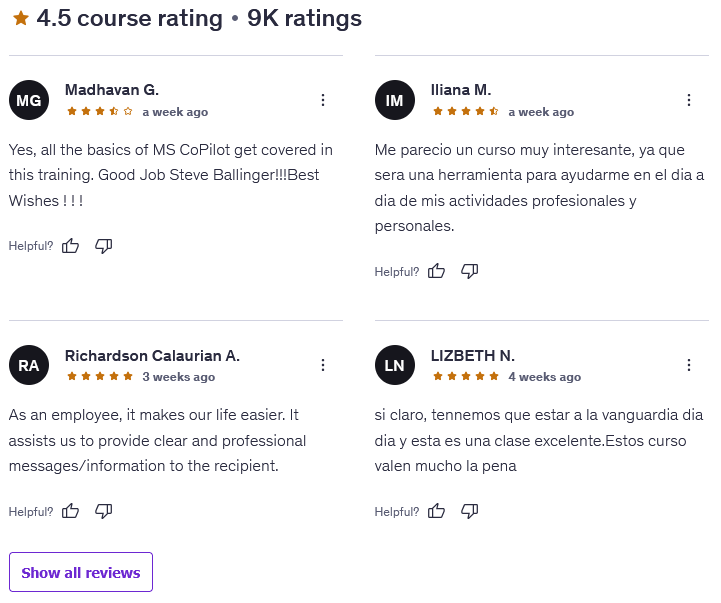
Feedback from real students lines up with the strengths of the content: they like the hands-on approach, the relatable examples, the easy-to-follow teaching style, and the fact that you can apply what you learn immediately. Some reviewers mentioned occasional moments where the demos felt a bit rushed or unpolished — usually because Steve is clicking around quickly or jumping between menu options — but this is a small tradeoff for the authenticity of real demonstrations.
Overall, the content quality is both practical and forward-looking, covering everything you need to start using Copilot effectively in Microsoft 365 today while giving you a sense of how the tool can grow with your workflow as Microsoft continues expanding its AI capabilities.
Overall Course Rating – 9/10
Overall, I’d rate Copilot Microsoft 365 (Copilot AI + Excel, Word, PowerPoint) a 9/10, and that rating comes from a blend of strong instruction, practical demonstrations, and genuinely useful content that most working professionals can start applying on day one. The course does a great job setting expectations and then delivering on them: if your goal is to see exactly how Copilot works inside the main Microsoft 365 apps, this course gets you there efficiently without drowning you in fluff.

The first big reason this course earns such a high rating is how immediately applicable everything is. You don’t watch hours of theory hoping to eventually get to something useful — the course jumps straight into showing real workflows. Whether you struggle with Excel formulas, dread writing long emails, or spend too much time formatting PowerPoint slides, every section gives you at least one “oh wow, that could save me so much time” moment. This practical orientation is one of the biggest strengths of the entire course.
Another factor is the approachability of the material. Copilot is powerful, but it’s also a new technology that can feel intimidating, especially if you’re not someone who keeps up with AI trends. Steve’s teaching style makes everything feel doable. He walks through each workflow slowly enough to follow, highlights the key prompts to use, and shows realistic examples that match everyday work tasks. You don’t need a technical background to get value out of the content — the course is very much built for normal office users who want to enhance their productivity.
The course also shines in breadth. Copilot in Excel is a different experience than Copilot in Word or PowerPoint, and Steve takes the time to show how each version works. This gives you a full picture of how AI integrates across the Microsoft 365 suite rather than treating it like one generic tool. And the addition of Copilot Chat content rounds out the experience nicely by showing how you can work creatively and cross-functionally outside the boundaries of individual apps.
Of course, the course isn’t without its minor flaws. A few lessons feel a bit “live-demo rough,” and some students might prefer more polished, pre-scripted examples. But personally, the imperfect demos actually make the learning experience feel more honest. AI tools don’t always give perfect answers, and Steve shows how to adapt, refine inputs, and iterate — which is exactly what real Copilot usage looks like.
When you combine the instructor’s enthusiasm, the clarity of the lessons, the relevance of the examples, and the immediate usefulness of the skills taught, you end up with a course that offers high value to nearly any professional using Microsoft 365. Whether you’re a manager, analyst, writer, admin, or just someone who wants to get more done in less time, this course sets you up to unlock real productivity gains with Copilot.
Bottom line: It’s practical, it’s clear, it’s helpful, and it delivers what it promises — which is why it earns a confident 9 out of 10.